
Table of Contents
- Crypto.com How to Transfer to Bank: The Full Process Explained
- Step 1: Verify Your Identity (KYC)
- Step 2: Link Your Bank Account
- Step 3: Convert Crypto to Fiat
- Step 4: Initiate the Bank Transfer
- Step 5: Track and Confirm the Transfer
- Common Pitfalls and How to Avoid Them
- Insufficient Verification Level
- Bank Not Supported
- Currency Mismatch
- Withdrawal Fees and Limits
- Advanced Tips for Power Users
- Set Up Recurring Withdrawals
- Leverage the Crypto.com Visa Card
- Utilize Low‑Fee Stablecoins for Transfers
- When Things Go Wrong: Troubleshooting Checklist
Cryptocurrency has become a mainstream way to store and grow wealth, but at the end of the day many of us still need cash in our traditional bank accounts. Whether you’re cashing out profits, paying bills, or simply moving funds for everyday use, knowing crypto com how to transfer to bank is essential. In this guide we’ll walk you through every detail – from linking your bank account to troubleshooting common hiccups – so you can convert your digital assets into fiat with confidence.
Crypto.com offers a sleek mobile app and web interface that make the process feel almost as easy as ordering a pizza. Yet, for newcomers the series of taps and verification steps can look a bit intimidating. That’s why we’ve broken down the workflow into bite‑size sections, sprinkled with practical tips and real‑world examples. By the end, you’ll have a clear mental map of the entire journey, from your crypto wallet to your bank statement.
Crypto.com How to Transfer to Bank: The Full Process Explained
The core idea behind crypto com how to transfer to bank is simple: you first sell the crypto you hold on the platform, then you withdraw the resulting fiat currency to a linked bank account. Below is the step‑by‑step sequence that works for most users worldwide.
Step 1: Verify Your Identity (KYC)
Before any fiat movement, Crypto.com requires you to complete Know‑Your‑Customer (KYC) verification. This typically involves uploading a government‑issued ID, a selfie, and proof of address. The verification process ensures compliance with anti‑money‑laundering regulations and protects both you and the platform.
Step 2: Link Your Bank Account
To actually move money, you need to connect a bank account. If you’re wondering how to link bank account to Crypto.com, the answer is straightforward:
- Open the Crypto.com app and navigate to ‘Accounts’ → ‘Fiat Wallet’ → ‘Add Bank Account’.
- Enter your bank’s routing number (or IBAN for international users) and your account number.
- Crypto.com will send a small micro‑deposit (usually $0.01) to verify ownership. Enter the exact amount when prompted.
Once verified, the bank appears in your “Saved Accounts” list, ready for withdrawals.
Step 3: Convert Crypto to Fiat
Now that your bank is linked, you need to turn your crypto into fiat (USD, EUR, etc.). Follow these steps:
- Go to the ‘Trade’ tab, select the cryptocurrency you wish to sell.
- Choose the “Sell” option, specify the amount, and confirm the market price (or set a limit order if you prefer).
- The proceeds will be credited to your Crypto.com fiat wallet instantly.
Tip: If you hold multiple assets, consider consolidating them into a single stablecoin (e.g., USDC) before selling to minimize trading fees.
Step 4: Initiate the Bank Transfer
With fiat in your Crypto.com wallet, it’s time for the actual crypto com how to transfer to bank step. Here’s how:
- Navigate to ‘Accounts’ → ‘Fiat Wallet’ → ‘Withdraw’.
- Select the linked bank account you want to use.
- Enter the amount you wish to transfer and double‑check the currency.
- Confirm the withdrawal. Crypto.com usually processes standard ACH transfers within 1–3 business days, while faster options like SWIFT may incur higher fees but arrive quicker.
Step 5: Track and Confirm the Transfer
After you hit “Confirm,” the app will display a transaction ID and an estimated arrival time. You can monitor the status under the “Withdrawal History” section. Once the funds land in your bank account, you’ll receive a notification from both Crypto.com and your bank.
Common Pitfalls and How to Avoid Them
Even though the workflow is linear, a few snags can crop up. Below are the most frequent issues users encounter when they ask “crypto com how to transfer to bank?” and what you can do about them.
Insufficient Verification Level
Crypto.com offers tiered verification (Basic, Verified, and Pro). If you’re on the Basic tier, your daily withdrawal limit might be as low as $2,000. To increase the limit, complete the full KYC process and, for higher tiers, consider providing proof of income or source of funds.
Bank Not Supported
While Crypto.com supports most major banks, a few regional or online-only banks may be excluded due to regulatory constraints. If your bank isn’t accepted, you can first withdraw to a supported bank and then transfer internally, or use a prepaid debit card linked to Crypto.com.
Currency Mismatch
Make sure the fiat currency you’re withdrawing matches the currency of your bank account. Withdrawing EUR to a USD account will trigger a conversion fee and possibly a delay. Crypto.com allows you to hold multiple fiat balances, so select the right one before hitting “Withdraw.”
Withdrawal Fees and Limits
Standard withdrawals are often free up to a certain amount, but large or expedited transfers may incur a fee (typically 0.5%–1%). Review the fee schedule in the app’s “Fees” section before confirming. Also, keep an eye on daily and monthly caps; exceeding them will result in a “withdrawal limit reached” error.
Advanced Tips for Power Users

If you’re comfortable with crypto basics and want to streamline the crypto com how to transfer to bank routine, consider the following strategies.
Set Up Recurring Withdrawals
Crypto.com now supports scheduled withdrawals. This is handy if you receive regular crypto income (e.g., staking rewards) and want to automatically convert and move a portion to your bank each month. Go to ‘Accounts’ → ‘Fiat Wallet’ → ‘Scheduled Withdrawals’ to configure.
Leverage the Crypto.com Visa Card
Instead of a direct bank transfer, you can use the Crypto.com Visa card to spend fiat instantly. The card draws from your crypto balance, converting on the fly at the point of sale, which can be a quicker alternative for everyday purchases.
Utilize Low‑Fee Stablecoins for Transfers
If you frequently move money across borders, convert your crypto to a stablecoin like USDC, then withdraw via the stablecoin network to a partner bank that supports crypto‑friendly deposits. This can cut fees compared to traditional fiat conversions.
When Things Go Wrong: Troubleshooting Checklist
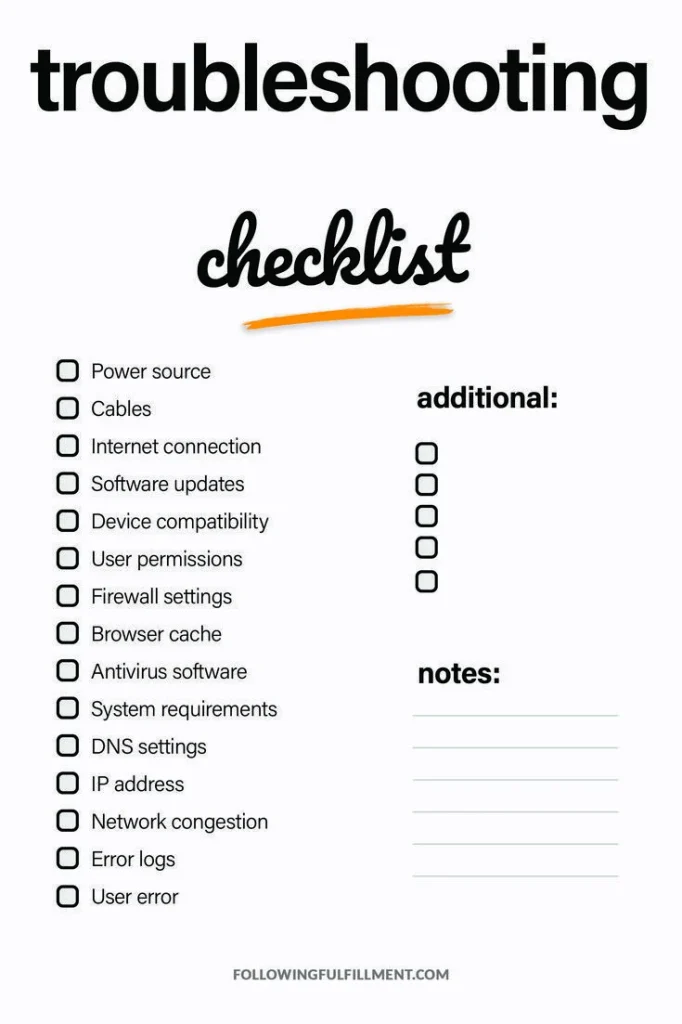
Even with careful preparation, a hiccup may occur. Use this quick checklist to diagnose and resolve common problems.
- Transaction stuck in “Pending” – Check your internet connection, refresh the app, and verify that you’ve completed all KYC steps.
- Bank rejects the deposit – Ensure the account name matches the name on your Crypto.com profile and that the currency aligns.
- Unexpected fees – Review the withdrawal receipt; sometimes banks charge inbound processing fees that are out of Crypto.com’s control.
- Transfer not reflected in bank balance – Allow up to 5 business days for international SWIFT transfers; contact your bank if the delay exceeds this.
For more detailed guidance on similar topics, you might find the article why cant i buy crypto on webull? Explained useful for understanding platform-specific restrictions, or explore Can You Send Crypto on Robinhood? Everything You Need to Know for a comparative perspective on crypto withdrawals.
In summary, mastering crypto com how to transfer to bank is a matter of preparation, verification, and a clear understanding of the app’s workflow. By linking your bank correctly, converting your assets efficiently, and staying aware of fees and limits, you can enjoy a seamless bridge between your digital portfolio and your everyday finances. Happy transferring!