First day cover ·
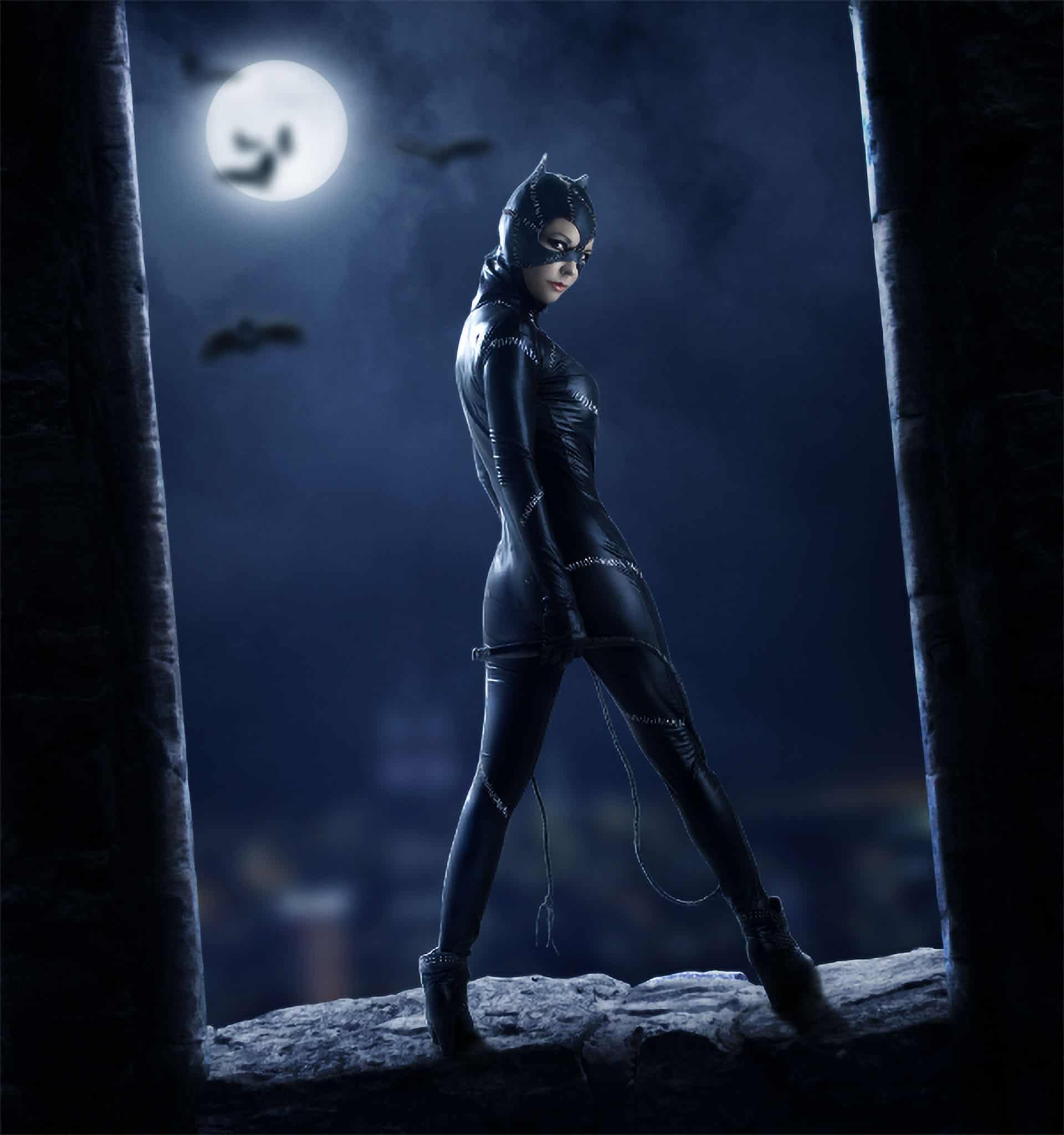
Build a Moonlit Catwoman Composite in Photoshop with Layer Masks and Color Grading
Combine a city, sky, moon and model into a dark poster scene using masks, selective blur, glow effects and adjustment layers.

A convincing night composite depends on more than stacking source images: each element needs to share the same depth, color and light. This Photoshop workflow builds a dark city scene from separate sky, skyline, moon, wall and model images, then uses masks and adjustment layers to bring them together. The tutorial targets Photoshop CS3 or newer and credits photographer David MacKenzie for the Catwoman portrait.
Assemble and grade the background
Start with a new document using the settings shown in the first tutorial image, then bring the sky image onto the white canvas with the Move Tool. Keep the sky on its own layer. Add a Hue/Saturation adjustment layer clipped to it and reduce the color, then add a clipped Curves adjustment to darken it. Clipping keeps these edits tied to the sky, so later changes to other layers won't shift its tone.


Place the city image above the sky and use Free Transform (Cmd/Ctrl+T) to rotate it slightly. Add a layer mask, select a soft black brush and paint away the city image's sky. The mask reveals the darker sky beneath while preserving the skyline, and remains editable if the blend needs refinement. Apply Gaussian Blur at 6 px to the city layer; the softened skyline reads as background and gives the scene a stronger sense of distance.


A clipped Hue/Saturation adjustment removes the blue cast from the large background building. Then use Color Balance to steer the city and sky toward a shared night palette. The reference images show the adjustment setup; make the color shift gradually, watching the building against the sky so it feels integrated rather than cut out.


Shape the moonlight
Move the moon into the upper-left part of the sky and mask away its original background. Set the moon layer to Screen at 100 percent, then soften it with Gaussian Blur at 4 px. This blend mode lets the brighter moon detail show while suppressing much of the dark surrounding area. Double-click the layer to add both Outer Glow and Inner Glow, building a luminous edge and a brighter center.


For a further light lift, create a separate layer and paint over the moon area with a soft brush, then set that layer to Screen at 100 percent. The tutorial's instructions don't specify a brush color, so choose one that fits the glow already established and keep the paint localized. Building the illumination across separate layers gives you room to adjust its strength without altering the moon itself.
Bring the foreground into the scene
The composition continues with two wall images and a model. Place the walls into the document and blend their edges with masks and soft brushing, using the same approach as the skyline: hide unwanted areas gradually and retain the source layers for adjustments. Add the model above the background and retouch her so she sits naturally within the composite. The supplied material doesn't give specific retouching settings, so work to match the portrait's edges, shadows and tonal range to the surrounding scene rather than applying an invented recipe.
Bat brush marks add a graphic element to the dark atmosphere. Keep them on their own layer so their placement and visibility can be refined independently. Finish with additional adjustment layers to unify contrast and color across the foreground and background. The workflow's central idea is controlled integration: build depth with blur, use masks to shape each source, and let the moon's glow establish the scene's direction of light.
Image sources
- Catwoman portrait by photographer David MacKenzie
- Sky
- City
- Moon
- Wall 1
- New York skyline wall image
- Bat brushes
The documented steps cover the background build and moon lighting before the later wall and figure work. Following that order gives the portrait a prepared environment to match, with the final color and contrast pass tying the layers into one poster composition.


